
How to Install IPTV on TiviMate
TiviMate is the most popular IPTV player for Android TV and Firestick, offering a premium viewing experience with an intuitive interface. This complete guide will walk you through the entire setup process, from installation to your first channel.
Get IPTV for TiviMateWhat You Need Before Starting
Make sure you have these essentials ready before beginning the installation process.
Required Items
- Android TV or Firestick: TiviMate works on Android TV devices, Amazon Fire TV Stick, Fire TV Cube, NVIDIA Shield, or any Android TV box running Android 5.0 or higher.
- TiviMate App Installed: Download TiviMate from Google Play Store (Android TV) or sideload it using Downloader app (Firestick). Installation takes just 2-3 minutes.
- IPTV Subscription Credentials: You'll need login details from an IPTV provider. Contact us via WhatsApp for instant access to premium IPTV with free test available.
- Stable Internet Connection: A minimum of 10 Mbps for HD streaming and 25 Mbps for 4K content is recommended for buffer-free viewing.
Complete TiviMate Setup Guide
Follow these simple steps to configure TiviMate and start streaming your IPTV channels in minutes.
Install TiviMate App
Begin by installing TiviMate on your device. For Android TV users, search for "TiviMate IPTV Player" in the Google Play Store and click Install. Firestick users should use the Downloader app (code: 272483) to sideload TiviMate. The installation process typically takes 2-3 minutes depending on your internet speed.
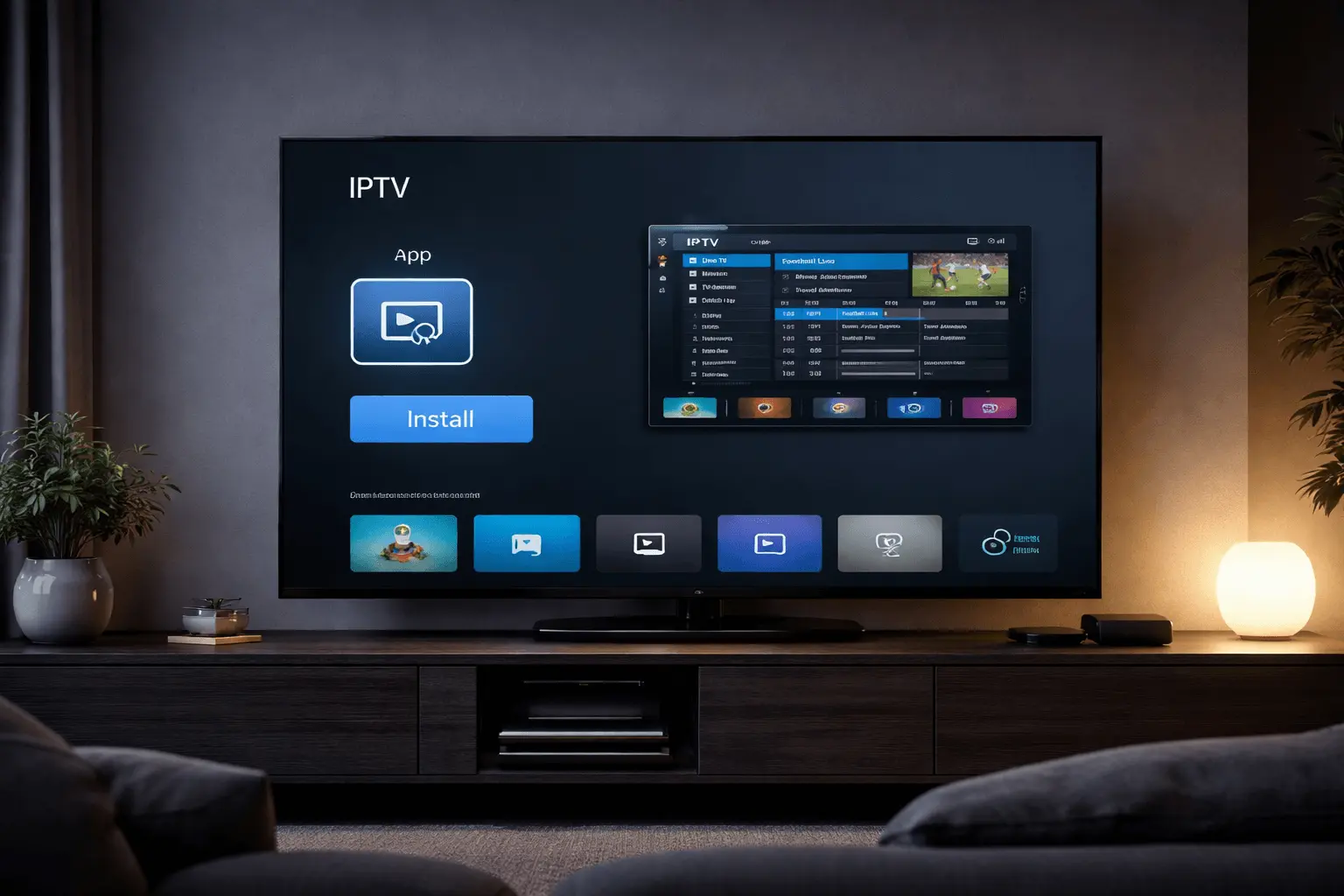
Screenshot: TiviMate app installation on Android TV or Firestick device
Open TiviMate & Add Playlist
Launch TiviMate for the first time. You'll see a welcome screen with the option "Add Playlist." Click on this button to begin adding your IPTV service. If you don't have IPTV credentials yet, contact us on WhatsApp for instant activation with a free test period.
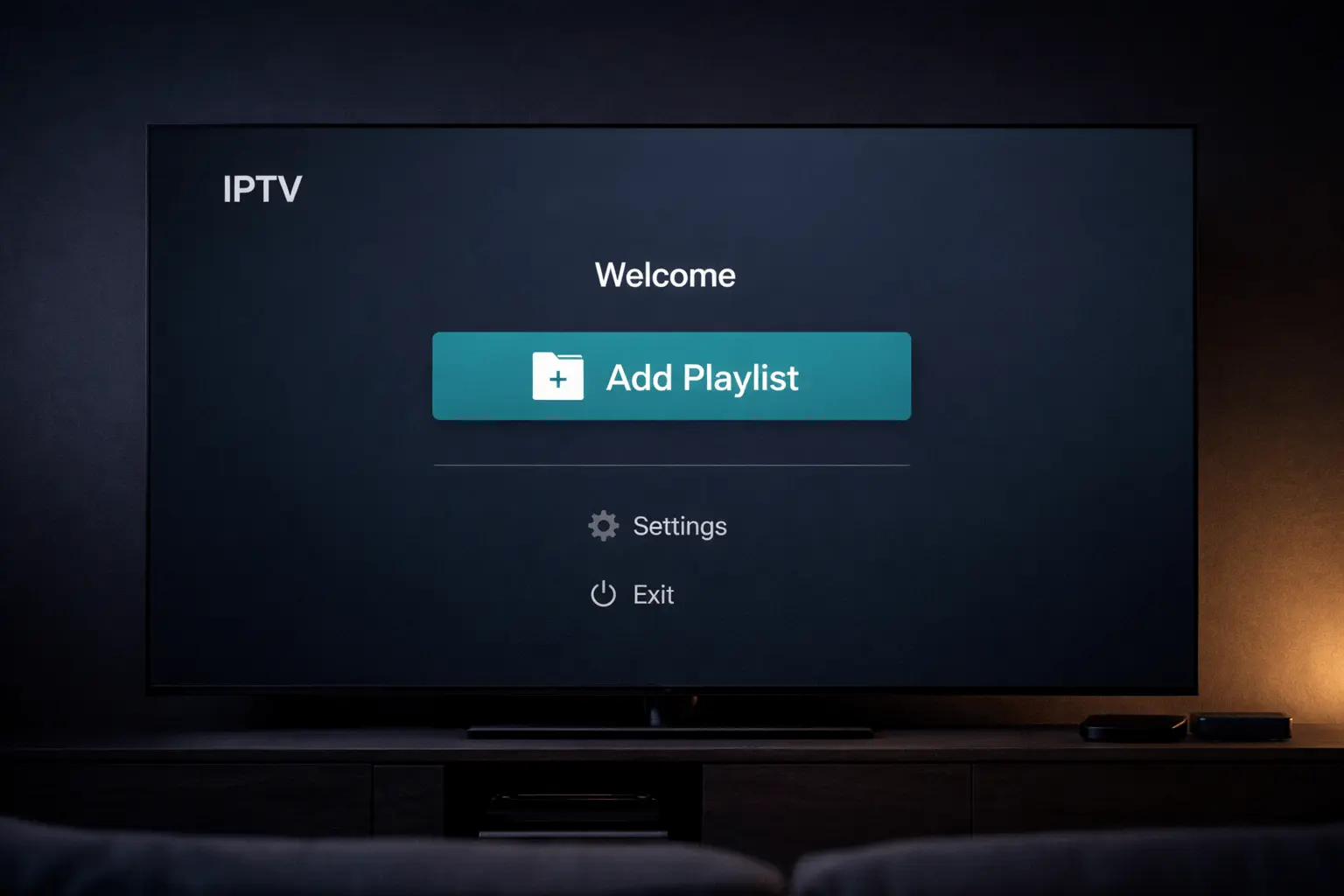
Screenshot: TiviMate's first launch screen with "Add Playlist" option highlighted
Choose Login Method
TiviMate offers three login methods: M3U URL, M3U File, and Xtream Codes API. For beginners, we strongly recommend Xtream Codes as it provides the most stable connection, automatic EPG updates, and access to catch-up TV features. Select "Xtream Codes API" from the options.
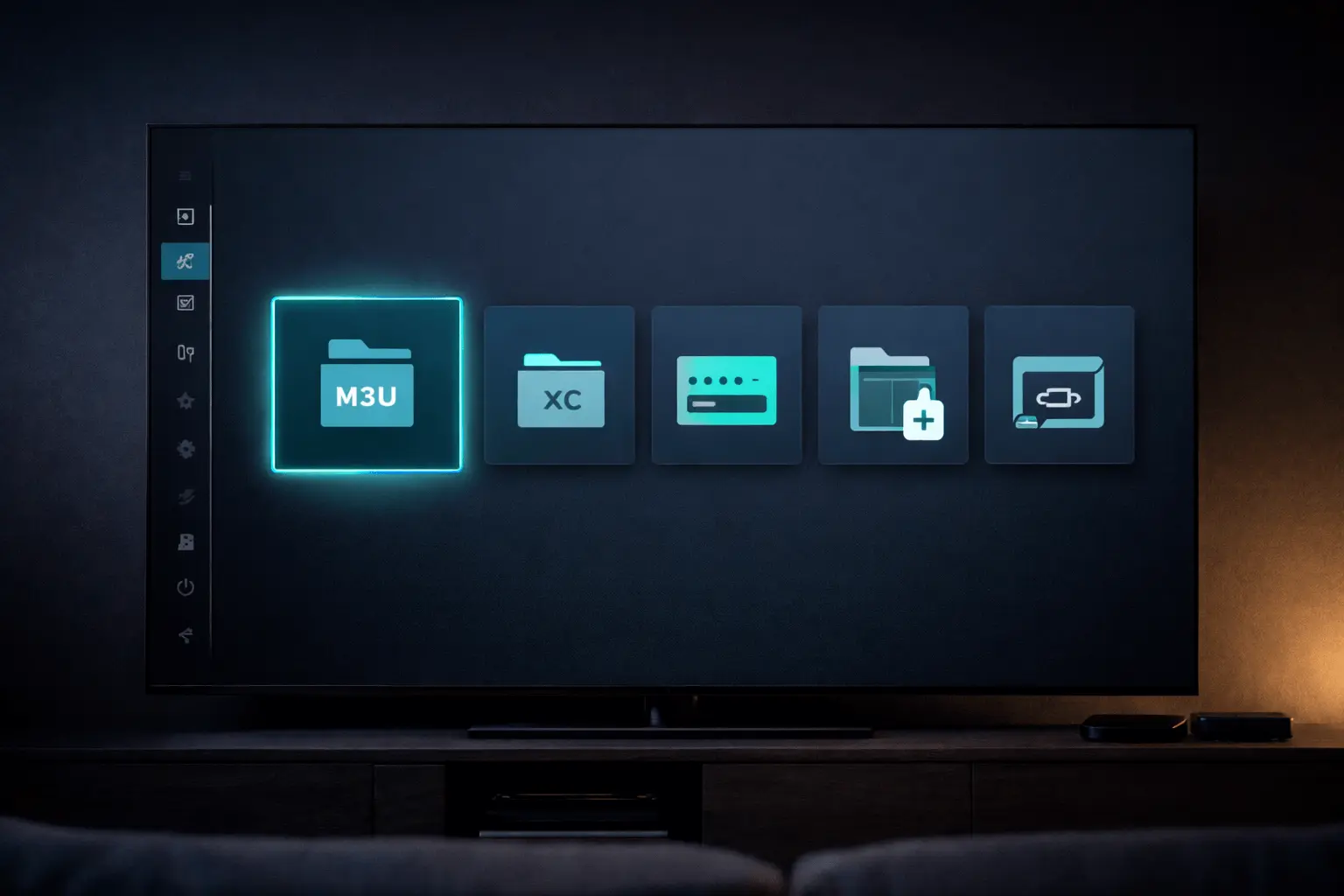
Screenshot: TiviMate playlist type selection with Xtream Codes highlighted
💡 Why Choose Xtream Codes?
Xtream Codes API format offers superior stability compared to M3U URLs. It provides automatic EPG synchronization, VOD (Video on Demand) access, catch-up TV functionality, and better server communication.
Enter TiviMate Xtream Codes Details
Now you'll need to enter your TiviMate Xtream Codes credentials. You'll see three fields: Server URL, Username, and Password. Your IPTV provider will supply these details. Enter them carefully without extra spaces. The Server URL typically looks like http://server.example.com:8080. After entering all details, click "Next" to proceed.
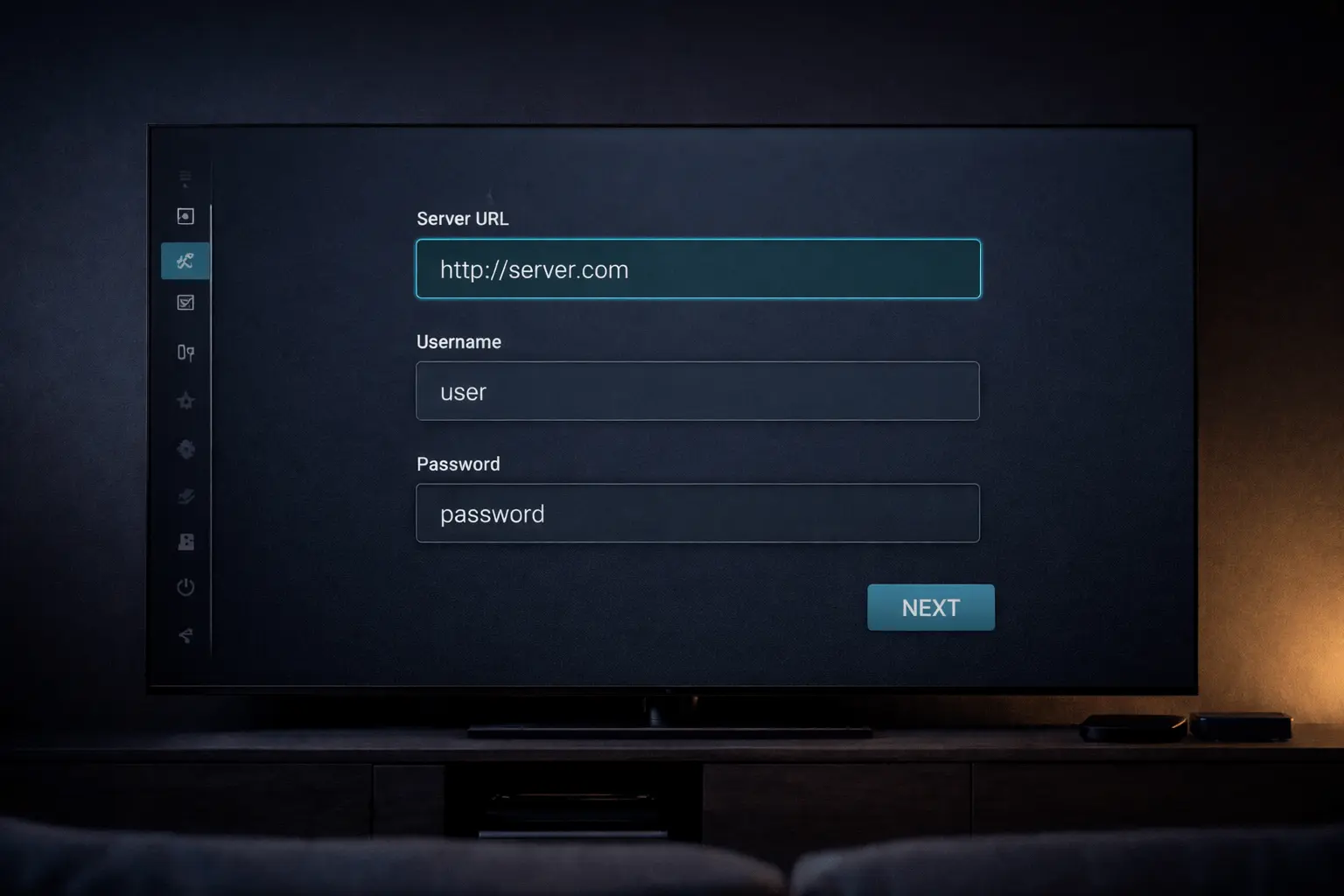
Screenshot: TiviMate Xtream Codes login screen showing server URL, username, and password fields
📋 Xtream Codes Format
Server URL: http://your-server.com:8080
Username: Your unique username
Password: Your account password
Don't have these credentials? Get instant access via WhatsApp with our premium IPTV service.
Load Channels & EPG
After entering your credentials correctly, TiviMate will begin loading your channel list and Electronic Program Guide (EPG). This process usually takes 30-60 seconds depending on your playlist size. You'll see a progress indicator showing "Loading channels..." Don't close the app during this process.
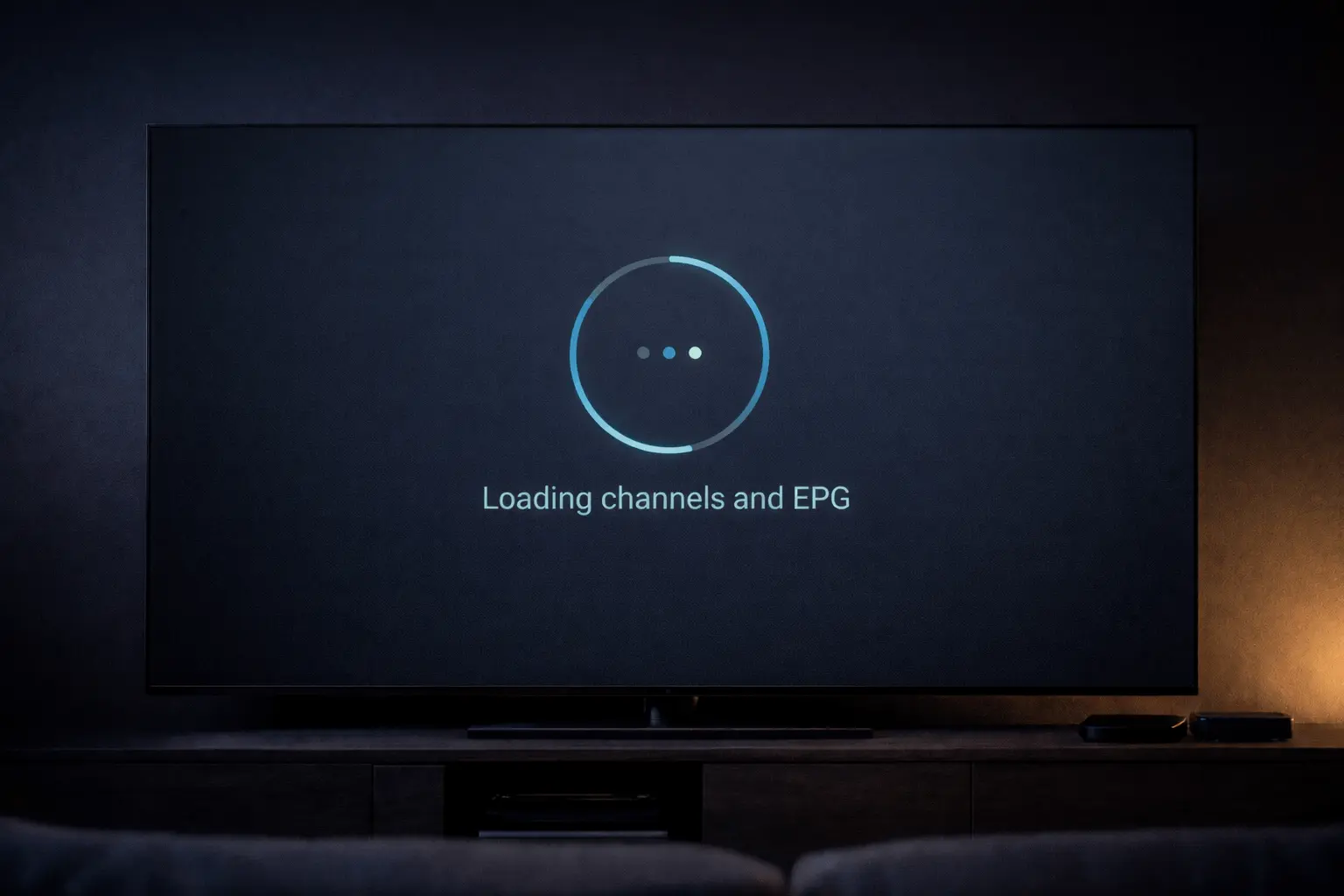
Screenshot: TiviMate loading screen showing channel and EPG synchronization progress
Start Watching IPTV
Congratulations! Your TiviMate setup is complete. You'll now see your full channel list with the EPG guide. Use your remote to navigate through channels, press OK/Enter to start streaming, and long-press to add channels to favorites. You can also access settings to customize your viewing experience.
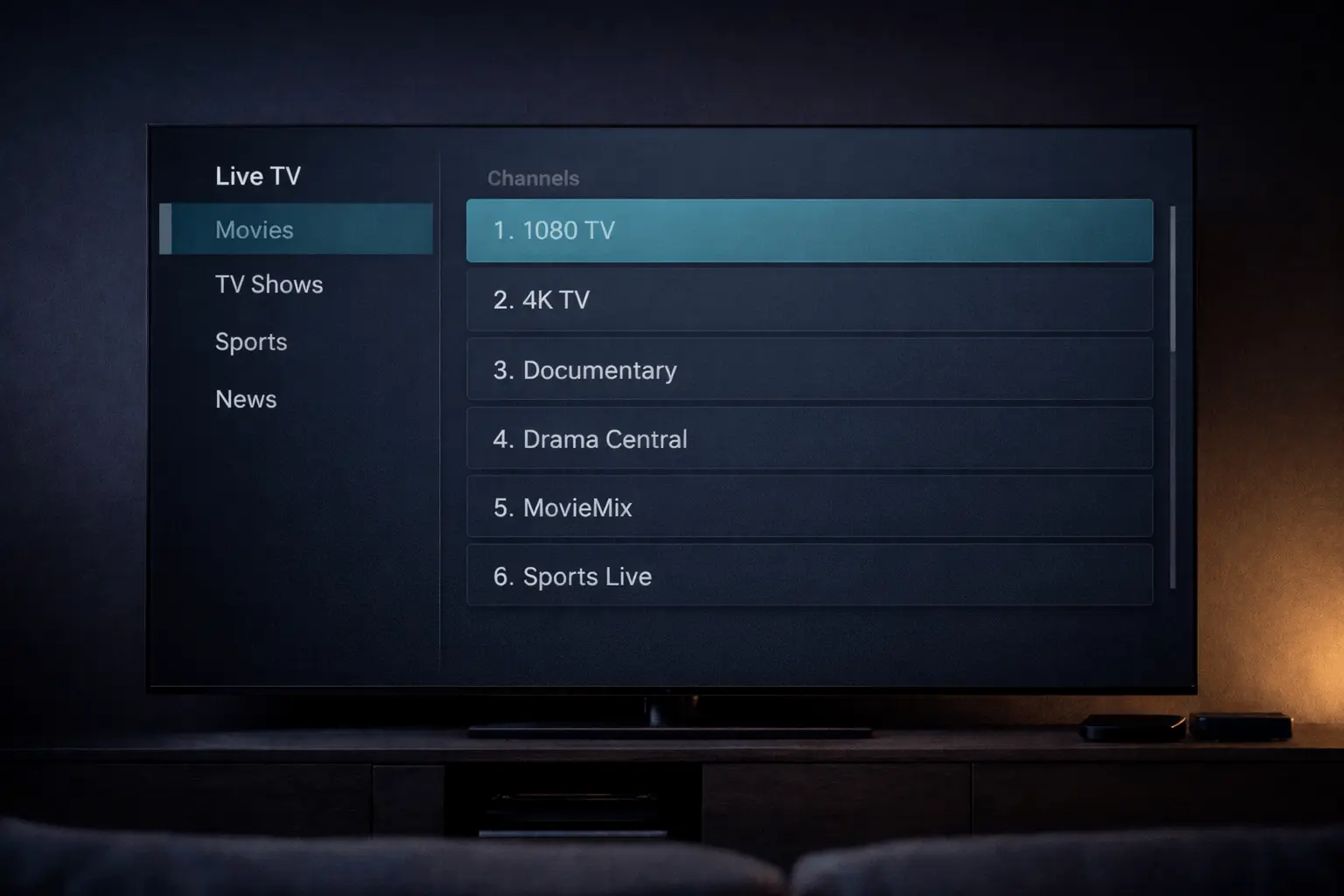
Screenshot: TiviMate main screen with channel list, EPG guide, and navigation interface
TiviMate Setup Tips for Best Performance
Optimize your TiviMate setup guide experience with these professional configuration tips.
📅 Enable EPG Auto-Update
Go to Settings > EPG > Set update interval to 24 hours. This ensures your program guide stays current automatically without manual updates.
⚡ Adjust Buffer Settings
Navigate to Settings > Playback > Buffer Size. Increase buffer to "Large" for slower connections to prevent stuttering and improve stream stability.
🔢 Sort Channels
Organize channels by category, favorites, or custom groups. Long-press any channel to add it to favorites for quick access to your most-watched content.
⭐ Use Favorites
Create a favorites list with your preferred channels. This eliminates scrolling through hundreds of channels and improves your viewing efficiency.
🎨 Customize Interface
Change themes, grid layouts, and channel logos in Settings > Appearance. Adjust font sizes and colors to match your preference and improve readability.
📡 Switch to HLS Format
Go to Playlist Settings > Xtream Codes Parameters > Output Format > Select HLS. This format adapts to your internet speed for smoother streaming.
Common Problems & Quick Fixes
Troubleshoot the most frequent TiviMate setup issues with these simple solutions.
IPTV Channels Not Loading
Solution: Double-check your Xtream Codes credentials for typos. Ensure there are no extra spaces before or after the server URL, username, or password. If the problem persists, verify your subscription is active by contacting your IPTV provider.
Wrong Xtream Codes Error
Solution: This error means the credentials are incorrect or your subscription has expired. Carefully re-enter your login details. Make sure you're using the server URL in the correct format: http://server.com:port. Contact us on WhatsApp for instant credential verification.
Buffering and Freezing Issues
Solution: Increase the buffer size in Settings > Playback > Buffer Size to "Large." Change the output format to HLS in Playlist Settings > Xtream Codes Parameters. Close other apps using bandwidth and restart your device. For persistent issues, your internet speed may need upgrading.
EPG Not Showing
Solution: Go to Settings > EPG and ensure "Update on Playlist Change" is enabled. Manually trigger an EPG update by going to Playlists > Your Playlist > Update EPG. Wait 2-3 minutes for the guide to load completely.
App Crashes or Won't Open
Solution: Clear TiviMate's cache in your device settings under Apps > TiviMate > Clear Cache. If the issue continues, uninstall and reinstall the app. Make sure your device has sufficient storage space (at least 100MB free).
Ready to Start Streaming?
Now that you know how to install IPTV on TiviMate, all you need are premium IPTV credentials. Contact us on WhatsApp to get instant access with a free test. Experience crystal-clear HD/4K streaming, zero buffering, and thousands of channels on your TiviMate setup.
Get IPTV Login for TiviMate